
Key Takeaways
A good WordPress help desk theme should make support simpler for customers and agents alike. Choose it around real journeys, reliable integrations and the level of maintenance your team can sustain.
- Start with the channels your customers already use.
- Match the theme to your ticketing and knowledge base requirements.
- Test compatibility, accessibility, speed and security before launch.
- Compare the full cost, not only the advertised licence price.
- Review feedback and analytics regularly after going live.
Define your support website’s requirements
Choosing a WordPress help desk theme starts with the support operation, not the homepage design. A theme may look polished while making it awkward to find an answer or submit a request. Write down what customers need to do and what agents need to see before comparing layouts. This gives your decision a practical foundation.
Identify your customers’ preferred support channels
Customers rarely all ask for help in the same way. Some prefer searching for an answer, while others expect a form, email or a conversation with an agent. Use existing enquiry data, website analytics and informal feedback to see which routes matter most. A simple support site should make the preferred route obvious without hiding alternatives.
It can also help to review a Knowledge Base and Helpdesk theme guide for ideas about self-service content and support-focused layouts. Treat those ideas as starting points, then adapt them to your own audience rather than copying a generic structure.
Decide whether you need tickets, live chat or knowledge base content
A ticket system is useful when requests need ownership, a history and a clear status. Live chat suits quick questions when someone is available, while a knowledge base can handle repeat questions at any hour. Decide which combination fits your staffing and response commitments. Adding every channel at once can create more work, not better service.
Map essential user and agent journeys
Sketch the journey from the first visit to a resolved issue. Include searching, opening a request, receiving a notification, replying, checking progress and finding the final answer. Then map the agent’s view: assignment, prioritisation, internal discussion and closure. Clear journeys prevent friction that attractive visual design can otherwise conceal.
A useful map should answer a few practical questions:
- Can a new visitor find the right support route in seconds?
- Does the form ask only for information an agent genuinely needs?
- Can an agent understand the history without switching between several screens?
- Is the resolution recorded in a way that can help the next customer?
Once these journeys are written down, test them with someone who was not involved in building the site. Their hesitation is often more revealing than an internal review.
Set goals for response times and customer satisfaction
Set targets that reflect your resources rather than promising an ideal service you cannot maintain. You might measure first response time, resolution time, reopened requests and customer ratings separately. These measures tell different stories, so avoid reducing the whole support experience to one number.
Make the targets visible to the team and review them after launch. If a new theme makes customers submit incomplete requests, response times may worsen even though the site looks faster to navigate.
Evaluate help desk features and functionality
Once the requirements are clear, compare how each WordPress help desk theme supports daily work. The theme itself may provide presentation, while a plugin supplies ticketing or other help desk functions. Look at the complete setup rather than assuming a theme includes every feature shown in its demonstration. A free WordPress helpdesk plugin guide can help you create a shortlist of functions to investigate.
Compare ticket submission and management tools
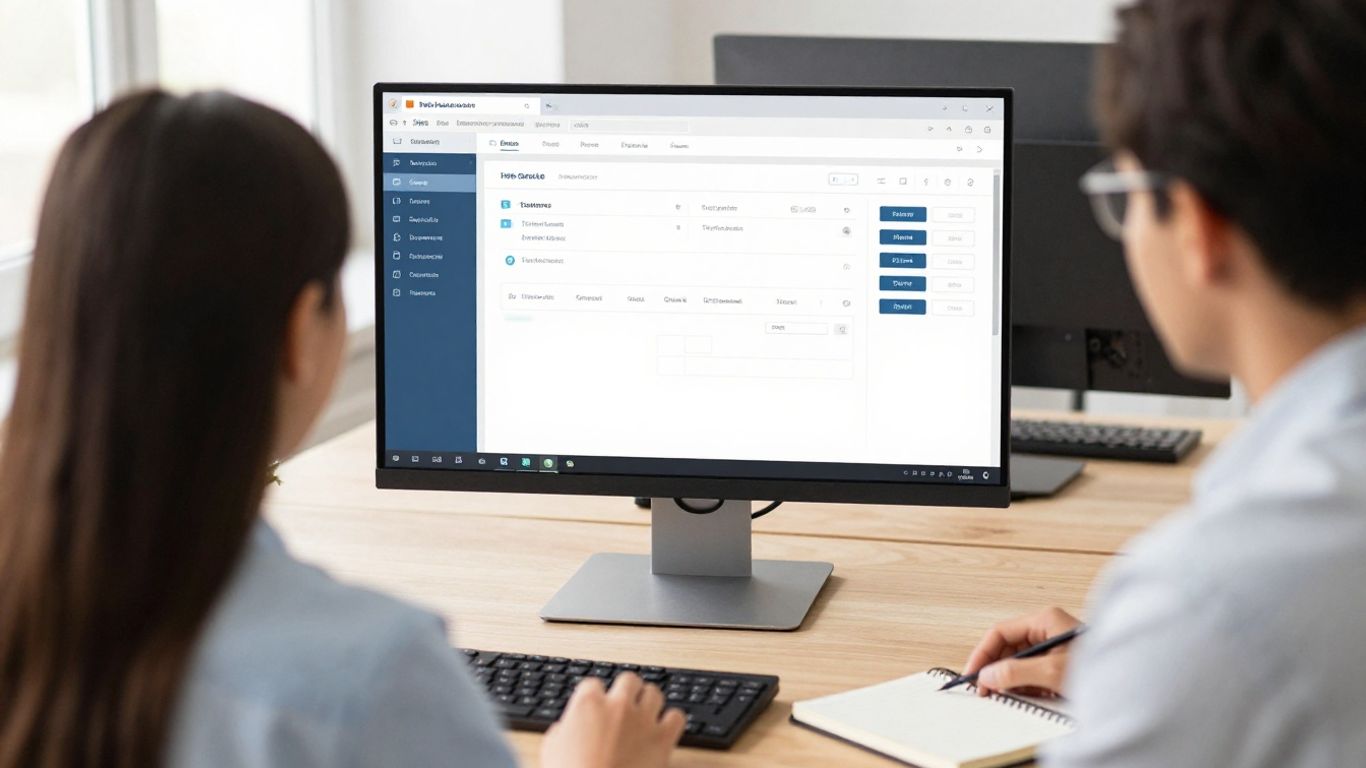
Examine the customer-facing form first. It should be easy to find, usable on a phone and clear about what happens after submission. On the agent side, check assignment, priorities, statuses, attachments, internal notes and search. The most useful interface is usually the one that reduces repeated handling rather than the one with the most controls.
Check support forums, FAQs and knowledge base features
Search should work across the content customers actually use, including FAQs, articles and troubleshooting steps. Categories and related articles can guide people when their first search is not quite right. If forums are part of the plan, decide who will moderate them and how outdated answers will be corrected.
Content should also be easy to update. A beautifully arranged article that requires technical help for every small edit will quickly become stale.
Assess email notifications and automation options
Notifications need to be timely without becoming noisy. Check messages for new tickets, replies, assignments, status changes and closures, then confirm that customers can recognise what action is expected. Automation should remove routine steps while leaving agents enough control to correct mistakes.
Document each rule before enabling it. A short table can make the trade-offs easier to compare during testing:
| Function | Customer benefit | Team consideration |
|---|---|---|
| Confirmation email | Reassurance that a request arrived | Include a useful reference number |
| Assignment notice | Clear expectation of ownership | Avoid sending duplicate alerts |
| Status update | Better visibility of progress | Use plain, consistent language |
| Closure message | A clear end to the journey | Offer a simple reply or rating route |
Use the table as a test plan, not as a promise that automation will solve every delay. Each notification should earn its place by clarifying the next step.
Look for customer portals and ticket status tracking
A portal can reduce repeat emails when customers can see open requests, previous replies and current statuses in one place. Check whether guests can receive support without unnecessary account creation, and whether signed-in users can find their own history. Status labels should be understandable to customers, not only to agents.
The interface should also explain what a customer can do next. “Waiting for customer” is more useful when paired with a direct request for the missing detail.
Check compatibility with your WordPress setup
Compatibility is easy to overlook when a demo is viewed in isolation. Check the theme against your WordPress version, active plugins, hosting environment and publishing workflow. Test on a staging site before changing a live support service. A theme that works alone may behave differently once your existing tools and content are present.
Confirm compatibility with your WordPress version
Check the theme documentation for supported WordPress versions and recent update history. Look for evidence that the developer maintains the product rather than relying on an old demo. Test core pages, forms, menus and search after installing the theme on staging.
Keep a record of the versions you tested. That makes future troubleshooting much quicker when WordPress, a plugin or the theme changes.
Review support for popular help desk plugins
Identify the plugin that will handle tickets before committing to a theme. Confirm that its forms, portals, statuses and agent screens display correctly, including validation messages and logged-in views. For a documented example, JS Help Desk offers front-end ticket submission and guest ticket options; those functions still need testing within your own design and workflow.
Do not rely only on a compatibility badge. Create sample tickets, reply to them and check every customer-facing state.
Test integrations with email, CRM and ecommerce tools
Support often touches order records, customer accounts and email delivery. Test whether links, account data and notification addresses pass correctly between systems. If the site sells online, check the support journey for both a logged-in buyer and a visitor who has not placed an order.
Keep integrations limited to information the team actually needs. More connections can mean more points of failure and more personal data to protect.
Check whether the theme works with your page builder
If your team uses a page builder, test templates, headers, footers and reusable blocks rather than one imported page. Check whether edits remain manageable for the people who will maintain the support site. A practical support website layout includes a search bar, simple menus and a customisable design, but the same features must still fit your own builder and content model.
Record any builder-specific limitations before launch. They are much easier to address while the site is still on staging.
Assess design, accessibility and user experience
Support design should reduce the distance between a question and a useful next step. It needs calm hierarchy, readable content and predictable controls, especially when visitors arrive frustrated. Review the whole journey instead of judging a theme from its hero section. Good usability is often quiet and unremarkable, which is precisely why it works.
Choose a layout that makes support content easy to find
Put search, popular answers and the main contact route where visitors naturally expect them. Use meaningful categories and avoid filling the first screen with decorative panels. Make article pages easy to scan with descriptive headings, short paragraphs and links to related guidance.
Ask someone unfamiliar with the site to find an answer without instructions. Their route will show whether the navigation is genuinely clear.
Check mobile responsiveness across devices
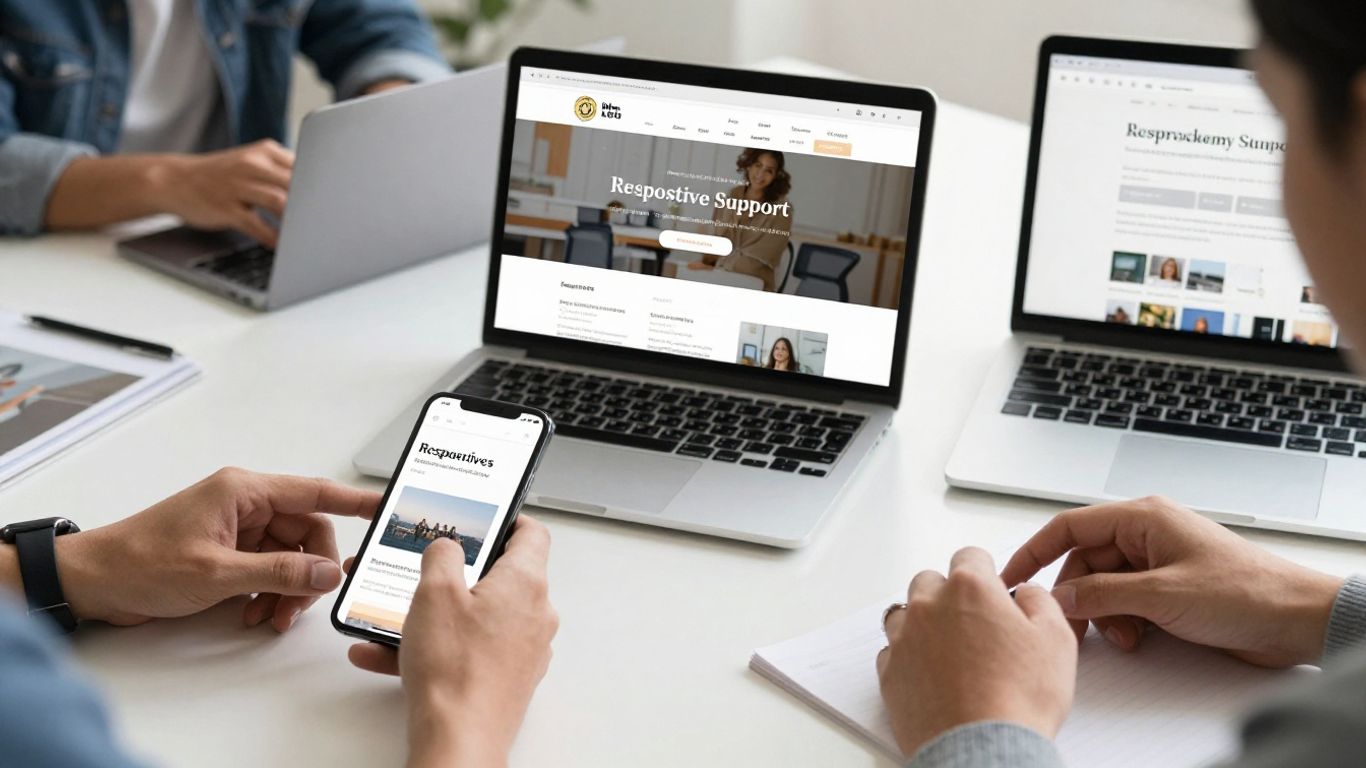
Test the support site on small phones, tablets and larger screens. Forms should not require awkward zooming, buttons should have enough space and articles should remain readable without horizontal scrolling. Check ticket attachments and account screens as well as the homepage.
A responsive layout is only the beginning. Slow loading, intrusive pop-ups or a keyboard that covers the submit button can still make mobile support unpleasant.
Review accessibility features and navigation
Look for strong colour contrast, visible keyboard focus, logical heading levels and labels that remain understandable when read aloud. Error messages should explain how to fix a problem rather than simply announcing that something went wrong. Test menus and forms without a mouse where possible.
Accessibility should be part of acceptance testing, not a final visual check. Small changes to wording and focus order can have a substantial effect on who can use the service.
Match the theme to your brand without reducing usability
Use familiar colours, language and imagery, but keep the support environment distinct enough to feel task-focused. Brand styling should not make body text faint or hide important links. Check the design against real articles and forms, not placeholder content.
A consistent visual system also helps agents recognise the support site quickly. Consistency is valuable, provided it does not override clarity.
Compare performance, security and scalability
A support site must remain dependable when customers need it most. Page speed affects the first interaction, while security and updates protect the conversations that follow. Consider what happens during a busy product release or service incident, not only on a quiet afternoon. These checks are part of choosing a WordPress help desk theme, not optional polishing.
Test page speed and Core Web Vitals
Test representative pages such as the homepage, search results, a long article and the ticket form. Remove unnecessary scripts, oversized images and unused design elements where possible. Compare results on mobile as well as desktop, and keep a baseline so later changes can be measured.
Core Web Vitals can guide the review, but real user behaviour matters too. A technically acceptable score does not excuse a form that feels slow or confusing.
Review theme updates and developer support
Check how often the theme is updated, how changes are documented and how support requests are handled. Read the changelog for signs of active maintenance and test updates on staging before applying them to production. Your own WordPress maintenance plan should also account for backups, updates and checks around the support site.
That link should lead to a service you can actually maintain, not just install once. A help desk becomes part of the business infrastructure very quickly.
Check security practices and coding quality
Use reputable download sources and review the developer’s update record. Keep WordPress, themes and plugins current, restrict administrator access and use strong authentication. On staging, check forms, uploads and permissions with realistic user roles.
Avoid adding functions you do not need. A smaller, well-understood setup is generally easier to review and keep current than a collection of loosely connected extras.
Consider how the theme will handle growing ticket volumes
Ask how search, archives and customer portals behave as content and tickets increase. Plan how old requests will be retained, exported or removed in line with your policies. Also consider agent onboarding: a growing team needs clear statuses, permissions and repeatable workflows.
Growth is not only a server question. If customers cannot find older answers or agents lose context, the support experience will deteriorate even when the site remains online.
Review pricing, licensing and ongoing support
The cheapest theme is not necessarily the least expensive choice. Compare the licence, renewals, extensions, maintenance time and any specialist work needed to make the site fit. Include the cost of testing and keeping the support service available during updates. This gives you a more honest view of value.
Compare free and premium WordPress help desk themes
Free options can be a sensible way to validate a support structure, particularly when your needs are modest. Premium options may include a more complete starting layout or clearer support arrangements, but that does not remove the need for testing. Compare what is included, what is optional and what will remain your responsibility.
Use the same shortlist and criteria for both types. A low entry price should not distract from missing features your team will immediately need.
Understand licences, renewals and usage restrictions
Read whether the licence covers one site, several sites or client projects. Check renewal terms, update access and restrictions on redistribution or modifications. If the theme is used for a customer portal, confirm that the licence supports the intended audience and installation.
Save the purchase details somewhere accessible to the people responsible for renewals. Forgotten licence information can create avoidable disruption later.
Evaluate documentation and customer support
Good documentation should explain installation, configuration, templates and common conflicts in language your team can follow. Support response times and channels matter too, especially when a theme is part of a live help service. Test the documentation with a small configuration task before buying.
Do not confuse a long feature list with useful guidance. A concise article that solves a real problem is more valuable than a catalogue of options.
Calculate the total cost of ownership
Add the licence, renewals, hosting, email delivery, plugin costs, development time and routine maintenance. Include time spent checking backups, testing updates and fixing incompatibilities. A small support site may need little ongoing work, while a busy service desk needs a clearer operational budget.
A simple annual estimate makes trade-offs visible and helps prevent underfunding the parts customers actually rely on.
Launch and optimise your WordPress help desk theme
Launch is the start of the support process rather than its finish. Prepare content, permissions and notifications before inviting customers to use the site. Run realistic tests and keep a fallback route available for the first few days. A calm launch gives the team room to correct small problems before they become habits.
Prepare support content before going live
Start with the questions agents answer repeatedly and turn them into short, task-focused articles. Add screenshots where they clarify a step, review old content for accuracy and provide a clear route to contact support when self-service does not help. Give each article an owner and a review date.
A small, accurate knowledge base is more useful than a large collection of unfinished drafts. Publish what customers need most, then expand from evidence.
Configure roles, permissions and notification rules
Give agents access to the functions required for their work and no more. Separate administration from everyday ticket handling, then test each role with a sample account. Review notification rules for customers, agents and managers so that urgent changes are visible without flooding inboxes.
Write down the final configuration. This makes handovers and future troubleshooting less dependent on one person’s memory.
Test ticket workflows from the customer’s perspective
Submit requests from different devices and account states, including a customer who has never used the site before. Check confirmation emails, attachments, replies, status changes and closure messages. Then repeat the workflow as an agent and confirm that the customer sees only the information intended for them.
A short recorded walkthrough can help new agents learn the route, but it should supplement written instructions rather than replace them. Written guidance is easier to search and update.
Use analytics and feedback to improve the support experience
Review searches with no useful result, pages that lead to repeated tickets and forms that are frequently abandoned. Pair those signals with customer comments and agent observations. Improve one part of the journey at a time, then watch whether the change affects response times, resolutions or satisfaction.
Keep a small change log so the team can see what was tried and what happened. Continuous improvement works best when it is specific and measurable.
Conclusion
The right WordPress help desk theme is the one that fits your customers, your workflows and your capacity to maintain it. Start with journeys and support goals, test the full technical setup, and judge the design through accessibility and everyday use. With careful launch testing and regular review, the theme can become a dependable front door to your support service rather than another source of friction.
Frequently Asked Questions
What is a WordPress help desk theme?
It is a WordPress theme designed to present support content and customer service journeys clearly. Ticketing, chat and knowledge base functions may come from separate plugins or services, so check what is actually included.
Should a help desk theme include ticketing?
Not necessarily. Some themes focus on layouts and content presentation, while a plugin manages tickets. Decide which functions you need, then confirm that the chosen theme displays those tools correctly.
Is a knowledge base better than a ticket form?
They serve different purposes. A knowledge base can answer repeat questions quickly, while a ticket form gives customers a route for issues that need individual attention. Many support sites benefit from both.
How can I test a theme before launch?
Install it on a staging site and run complete customer and agent journeys. Test search, forms, emails, mobile layouts, permissions, accessibility and updates with realistic sample content.
What makes a support theme accessible?
Useful foundations include readable contrast, logical headings, keyboard navigation, visible focus states, clear labels and helpful error messages. Test with assistive technology where possible instead of relying only on automated checks.
Should I choose a free or premium theme?
Either can work. Compare the features, documentation, update access, support arrangements and total maintenance cost rather than judging only the initial price.
How often should a help desk site be reviewed?
Review it after major WordPress, theme or plugin updates and use analytics and feedback for ongoing improvements. A deeper content and workflow review every few months can reveal issues that speed tests alone will miss.