Key Takeaways
Local development gives you a private place to build, test and repair WordPress without disturbing visitors. A sensible setup, careful testing and a clear launch plan make local WordPress help much easier to use.
- Build and test changes away from the live website.
- Choose tools that match your technical comfort and hosting environment.
- Keep local files, databases and credentials organised.
- Test themes, plugins, layouts, forms and performance before launch.
- Take backups and prepare a rollback plan before migrating.
Understanding local WordPress development
Local WordPress development means running a WordPress site on your own computer rather than on a public server. It creates a private workspace where you can experiment, learn and repair issues with less risk. The site may look and behave like a live website, but visitors cannot reach it unless you deliberately share it. That separation is the foundation of a calmer workflow.
What a local WordPress site is
A local site uses software on your computer to provide the three things WordPress needs: web-server processing, PHP and a database. You open it through a local address in your browser, then work in the familiar WordPress dashboard. Files, uploads and database records remain on your machine, so the environment is normally invisible to search engines and public visitors.
The result is not a hosted website, and it is not automatically a backup. If your computer fails or the local project is deleted, the site can disappear too. Treat local work as a separate development copy and keep sensible backups of anything valuable.
Why develop locally instead of on a live website
A live website has real visitors, real orders and real email notifications. Changing a plugin or editing a template there can create an outage before you have had time to see the consequences. Locally, you can test the change first, compare before and after, and discard an experiment when it does not work.
This approach is especially useful for larger updates and custom code. A private testing space lets you find errors while they are still convenient to fix, rather than after a customer reports them.
When local development is most useful
Local work suits new websites, redesigns, plugin evaluations and theme development. It is also helpful when you need to reproduce a live-site problem without repeatedly changing production. Beginners can learn the dashboard and practise safely, while experienced developers can work without waiting for an internet connection.
It is less suitable when several people need the same constantly updated copy or when a feature depends heavily on external services. In those cases, a staging environment may be a better companion to local development.
How local, staging and production environments differ
Local is private and designed for experimentation. Staging is usually hosted and shareable, making it useful for client review and final checks. Production is the public website, where changes affect visitors, search visibility, transactions and business operations.
Keep the environments conceptually separate even when they contain similar files. A setting that is harmless locally, such as a test email address, can be damaging on production. Record which environment you are using before making an administrative change.
Choosing the right local WordPress setup
There is no single correct way to run WordPress on a computer. Your choice depends on whether you value simplicity, repeatability, command-line control or close alignment with hosting. Start with the site you need to build, not with the most complicated tool you can find.
Using Local for a beginner-friendly workflow
Local by WP Engine automatically installs WordPress and includes SSL, which can remove several early setup steps. Its documented workflow also includes one-click admin access, root SSH access, WP-CLI and the ability to hot-swap PHP environments. Those features can be useful as your confidence grows, although you do not need to use every advanced option on day one.
For a beginner, the main benefit is a guided starting point: create a site, open it in the browser and begin learning. Keep a short note of the PHP version and site settings you chose so that later troubleshooting is less mysterious.
Comparing Docker, XAMPP and other development tools
Docker, XAMPP, MAMP and similar tools can all support local development, but they organise the environment differently. A traditional local stack may feel straightforward at first, while containers can make projects more consistent between computers. The right choice is the one you can understand, reset and explain when something goes wrong.
Before committing, consider how much command-line work you want, whether you need several PHP versions and how closely the setup should resemble your host. A beginner’s local development tools guide can help you compare the practical workflow rather than choosing on reputation alone.
Checking compatibility with your hosting environment
Check the live host’s PHP version, database type, web server behaviour and supported extensions before building too far. Also look at HTTPS, scheduled tasks, caching, image processing and any server-level rules your site relies on. A local copy can appear healthy while missing a production dependency.
Record these details in the project notes. The closer the local environment is to staging and production, the more useful your test results will be, but exact parity is not always possible or necessary.
Deciding between a one-site and multi-site setup
A one-site setup is usually easiest when you are learning or working on a single project. A multi-site workflow can save time when you maintain several related websites, but it introduces more naming, storage and resource considerations. Separate projects also make it simpler to remove an experiment without touching other work.
Choose a structure that keeps databases, uploads and credentials clearly separated. If you regularly maintain multiple client sites, consistent naming matters more than clever folder arrangements.
Setting up a WordPress site on your computer
Setting up locally is mostly a matter of preparing the software, creating the site and checking its basic settings. Take the process slowly the first time; rushing through a dialogue or password field often causes the errors people later search for. Once one installation works, repeating the process becomes much quicker.
Installing the required software
You need a local web environment, a supported PHP version, a database service and the WordPress files. The exact installation steps vary by operating system and tool, so use the documentation for your chosen setup. Leave enough free storage for uploads, backups and additional projects.
Also install a modern browser and, if you will edit code, a suitable editor. Keep the versions written down. Version details are often the first useful clue when requesting local wordpress help.
Creating a local WordPress installation
Create a new site through your local tool or follow its manual installation process. Choose a clear site name and a local domain that you will recognise later. During setup, create an administrator account with a unique password, even though the site is not public.
Open the front end and dashboard immediately after installation. Test a page, a post and the media library before customising anything. This confirms that the basic environment works before themes and plugins add variables.
Configuring the domain, PHP version and database
A local domain should be easy to type and distinct from any public domain. Select a PHP version that is supported by WordPress, your theme and your important plugins, then check the database credentials supplied by the local tool. Do not assume that a site working on one PHP version will behave identically on another.
If you change PHP later, do so deliberately and test the site after each change. Small notes about the domain, version and database name will save time when you return to the project weeks later.
Importing an existing website into a local environment
An existing site normally needs both its files and a database export. Copy the WordPress files, import the database, update the local configuration and replace references to the live domain with the local address. Media may take time to copy, especially on a large site.
Expect a few manual checks after import. Review uploads, custom post types, scheduled tasks and integrations, and make sure local email cannot accidentally reach real customers. Keep the original backup untouched until the local copy has been verified.
Building and testing a site locally
Once the site runs, local development becomes a cycle of small changes and deliberate checks. Work in manageable steps so you know which change caused a problem. This is also the stage where a maintenance habit starts to pay off: document what you changed and why.
Installing themes and plugins safely
Install themes and plugins one at a time, using trusted sources and versions compatible with the project. Test activation, settings pages and the front end after each addition. A local copy is a safer place to assess a new feature, but it does not remove the need to review updates.
Keep unused extensions disabled or remove them from the project. When testing an update, note the previous version and check key pages, forms and administrative screens before moving the change elsewhere.
Managing content, media and user accounts
Use realistic sample content, including long headings, varied images, lists and empty fields. This reveals layout problems that a short dummy paragraph may hide. Create test accounts with appropriate roles rather than using the administrator account for every task.
Local media should be clearly separated from original production files. If you import customer information, minimise what you copy and remove it when testing is complete. Private development data deserves the same care as a live export.
Testing responsive layouts and browser compatibility
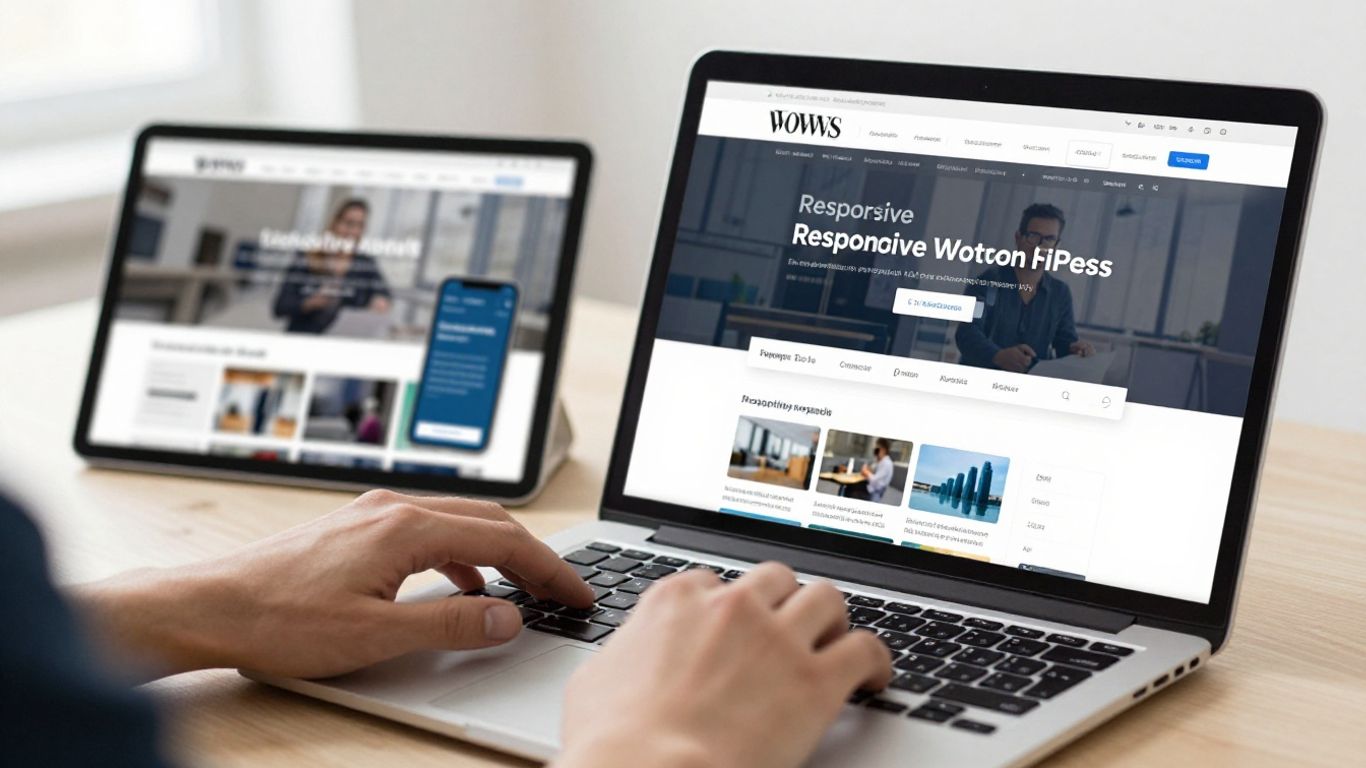
Resize the browser gradually instead of checking only a phone and desktop width. Look for overflowing menus, awkward buttons, unreadable text and images that distort. Test the interactions people actually use, such as navigation, search, login and checkout where relevant.
Use more than one browser for important journeys. A site that looks right in your preferred browser may still expose a script or styling issue elsewhere, particularly after a theme or plugin change.
Checking performance before deployment
Local performance numbers are useful for comparison but should not be treated as production measurements. Your computer, local database and missing server caching can make the same page behave differently online. Still, local checks can reveal oversized images, unnecessary scripts and inefficient queries.
Start with the pages that matter most. Remove obvious waste, compress suitable media and retest after each meaningful change. If the site is already slow locally, investigate before sending it to staging.
Using version control for custom code
Version control gives custom themes, plugins and configuration changes a history. Commit small, understandable changes and use messages that explain the purpose rather than simply saying “update”. Keep secrets and local configuration outside the repository.
A simple workflow might look like this:
- Create a branch for a focused change.
- Test the change locally and record the result.
- Review the files before committing.
- Merge only after the relevant pages still work.
This makes it easier to identify a bad change and return to a known working point. It also gives another person something concrete to inspect when support is needed.
Solving common local WordPress problems
Most local failures have a small cause: a service is stopped, a setting is wrong, or two pieces of software disagree. Resist the temptation to change several things at once. Capture the error, identify the last change and work from the simplest explanation.
Fixing database connection and site access errors
If WordPress reports that it cannot connect to the database, check whether the database service is running and compare the configuration values with the local tool’s details. A mistyped database name, username or password is common. Site access errors can also come from a stopped web service or a domain that is not resolving locally.
Restart services only after noting their current state. If the problem persists, inspect the local tool’s logs and confirm that another application is not already using the required port.
Resolving PHP, plugin and theme conflicts
A blank page, warning or broken layout after an update often points to a PHP, plugin or theme conflict. Reproduce the issue, deactivate the most recently changed extension and test again. If that restores the site, reactivate components one at a time to narrow the cause.
Check the error log rather than guessing. The message may identify a file and line number, which is far more useful than a general report that “WordPress is broken”.
Troubleshooting permalinks, redirects and broken links
After importing or changing a domain, links may still point to the live address. Review the site URL settings and search the database carefully for old references. Save the permalink settings again to refresh rewrite rules, then test posts, pages, categories and media URLs.
Redirect loops commonly come from conflicting HTTPS or domain settings. Check whether the local site expects SSL and whether a plugin is forcing a redirect that only makes sense on production.
Handling slow load times and resource limits
Slow local pages can result from limited memory, a busy database service, large imports or too many active extensions. Compare the site with a clean installation to see whether the environment or the project is responsible. Increase resources cautiously and change one setting at a time.
Large media folders and debug logs can also consume storage. Clean temporary files only after confirming they are not needed for diagnosis, and keep a separate copy of important logs.
Recovering from a failed update or migration
When an update fails, avoid repeatedly clicking the update button. Check whether files were partially changed, whether maintenance mode is active and whether the database migration completed. Restore a known working copy if you have one, then investigate from that stable point.
A beginner’s local WordPress guide can provide useful orientation, while the Local help documentation is appropriate when the issue concerns that application’s documented workflow. Keep the error message and version details when asking for further assistance.
Moving a local site to a live server
Launching a local site is more than copying a folder. Files, database values, URLs, permissions and external services all need to agree with the production environment. Plan the transfer when you can test afterwards, rather than treating deployment as the final click in a rushed evening.
Choosing a migration method
You can migrate manually, use a migration plugin or follow a host-specific process. Manual transfers offer visibility but require care with exports and URL replacements. A plugin may reduce repetitive work, provided it supports the site size, server limits and database structure.
Choose the method you can verify. A familiar process with a reliable backup is usually safer than a clever method nobody on the team understands.
Preparing files and the database for transfer
Before transfer, remove temporary content and confirm that the local database export is complete. Review configuration files, uploads and custom code, then take a fresh backup of the live site. Keep a dated copy of both the pre-launch live backup and the final local export.
Check file permissions and storage limits on the host. A migration can appear complete while silently omitting large uploads or failing to import a table.
Updating URLs and environment-specific settings
Replace local URLs with the live address using a method that understands serialised WordPress data. A careless text replacement can corrupt settings. Then review site URL values, HTTPS rules, debug settings, caching and any local-only configuration.
Search for the local domain in the database and files after migration. This simple check will not catch everything, but it can expose forgotten image paths, scripts and links before visitors do.
Checking forms, images, email and third-party integrations
Walk through the site as a visitor and as an administrator. Submit forms with test addresses, open images, check embedded media and confirm that transactional email uses the intended service. Payment, analytics, maps and other integrations may need production credentials or approved domains.
Do not use real customer transactions during the first check unless the service explicitly provides a safe test mode. Record each test and its result so that a failed check has a clear owner.
Creating a rollback plan before launch
A rollback plan should state what will be restored, where the backup is stored and who can perform the recovery. Take the final live backup immediately before making changes and avoid deleting the old version until the new site has settled.
Set a short observation period after launch. Monitor key pages, forms, orders, uptime and error logs, then keep notes for future maintenance rather than relying on memory.
Getting effective local WordPress help
Good support begins with a useful description of the problem. “It does not work” leaves too many possibilities, while a short timeline and exact error can make the next step obvious. The aim is not to sound technical; it is to provide enough context for someone else to reproduce the issue.
What information to include when asking for support
Include the operating system, local tool, WordPress version, PHP version and the exact action that caused the problem. Add the full error message, relevant log lines, screenshots where helpful and a list of recent changes. Say whether the issue affects the front end, dashboard or both.
Never paste passwords or private database exports into a public forum. Redact domains, email addresses and customer information before sharing diagnostic material.
Finding reliable documentation and community advice
Start with the documentation for your local tool and WordPress itself, then compare advice with your versions and setup. Search the exact error in quotation marks, but treat old forum answers carefully. A solution written for a different PHP version may create a new problem.
The local WordPress support guide is another starting point for understanding setup choices and common workflows. Prefer instructions that explain why a step works, not just a sequence of commands copied without context.
Knowing when to contact a WordPress professional
Professional help is sensible when the site affects revenue, contains sensitive data or has a problem you cannot reproduce safely. It is also worthwhile when repeated fixes are creating new issues or when a migration involves several external systems. A specialist can review the whole environment rather than treating one symptom.
Before handing over access, agree what will be changed, how backups will be handled and how the result will be tested. Clear boundaries protect both the site and the person helping you.
Protecting passwords, backups and private development data
Use separate credentials for local, staging and production, and store them in a password manager where possible. Encrypt backups, restrict access to exported databases and remove old copies that no longer have a purpose. Local does not mean automatically private if the computer is shared or compromised.
A written inventory of sites, versions, backups and responsible contacts makes future troubleshooting much less stressful. Small habits like these are the practical side of dependable WordPress care.
Conclusion
A local WordPress site gives you room to build, test and troubleshoot before changes reach the public. Choose a manageable setup, keep environments distinct, test the details that matter and protect every backup and credential. With that foundation, local development becomes a useful part of an ongoing maintenance routine rather than another source of uncertainty.
Frequently Asked Questions
Is local WordPress development suitable for beginners?
Yes. A guided local tool can simplify installation, while a manual setup can teach you more about how WordPress works. Begin with one small site and keep notes about the settings you choose.
Can visitors access my local WordPress site?
Normally, no. A local site runs on your computer and is not publicly available unless you deliberately configure a sharing or tunnelling feature. Treat any shared link as temporary and protect it appropriately.
Do I need internet access to work on a local site?
You can usually edit the local site without an internet connection, but downloads, licence checks, external APIs and remote services may not work. Test integrations again in staging or production.
Is a local site the same as a backup?
No. It is a development copy, not a guaranteed recovery point. Keep independent, dated backups of important files and databases in a protected location.
How do I move a local WordPress site online?
Transfer the files and database, update URLs and environment settings, then test forms, media, email and integrations. Take a live backup first and prepare a rollback plan before starting.
Why is my local site slower than expected?
The cause may be limited computer resources, a large database, oversized media, too many extensions or a misconfigured local service. Compare with a clean installation and review logs before changing several settings.
When should I ask for professional help?
Ask for help when the site is business-critical, sensitive data is involved, a migration is failing or repeated fixes are making the problem worse. Provide versions, error messages, recent changes and a safe way to reproduce the issue.